
Live radio data. Drawn locally.
Your device renders calibrated spectrum and waterfall data from the Core. Clarity follows the band noise floor to keep the waterfall readable as conditions change.
2026.11.0 is here · Free and open source
Keep the radio and the signal processing at your station. Take the console with you. NereusCore connects your OpenHPSDR radio to a native desktop, iPhone or iPad console, with remote receive, transmit and shared station access.
The Nereus way
One station engine. Native consoles on the devices you use. A workspace you can make your own, with the radio's capabilities and the people sharing it built into the way it works.
Your device renders calibrated spectrum and waterfall data from the Core. Clarity follows the band noise floor to keep the waterfall readable as conditions change.
Build a desktop workspace from pans, receiver slices and meters. Each connected device has its own view and operating state, with markers showing where others are listening.
Pair with your Core, work within the radio's available receivers, and see who holds transmit. Confirm receiver changes that affect another device before they happen.
NereusSDR for iPhone & iPad
A native app built for touch. See the band, tune a signal, hear your station and transmit from your phone. Your Core runs the radio and DSP; the app brings its controls to you.
Spectrum and waterfall drawn in Metal. Drag the band, turn a dial or enter a precise frequency. Keep your receiver flags and spots in view.
Receive audio on your speaker or headphones. Set modes, filters, AGC and noise reduction on the Core. Keep listening with the screen locked.
Voice transmit with on-screen PTT. The Core manages transmit ownership, time-outs and interlocks, with one device holding transmit at a time.
Choose native filter presets, save named TX profiles and watch PA peak and minimum readings. Spots, station accessories and Core-described Setup controls bring the rest of your station within reach. The app wears the desktop's workspace look, with the same palette, panels and buttons, and on a wide iPad Setup lists its categories beside the page. The spectrum stays smooth over long sessions, the 3D waterfall draws every frame and moves at the desktop's pace, zoom is kept across launches, the flag's level can show the peak, the average or Max Bin, NB Blank no longer freezes the waterfall when a loud station keys up, and with a 2026.11.0 Core each waterfall row stands on its own, so a lost network message costs one row. With a 2026.10.1 or later Core, Tools adds CAT Control and Rotor pages, a spot shows its bearing with a Turn beam button, and the Sound panel has Radio speaker and Core speaker sections. Operate from your iPhone or iPad →
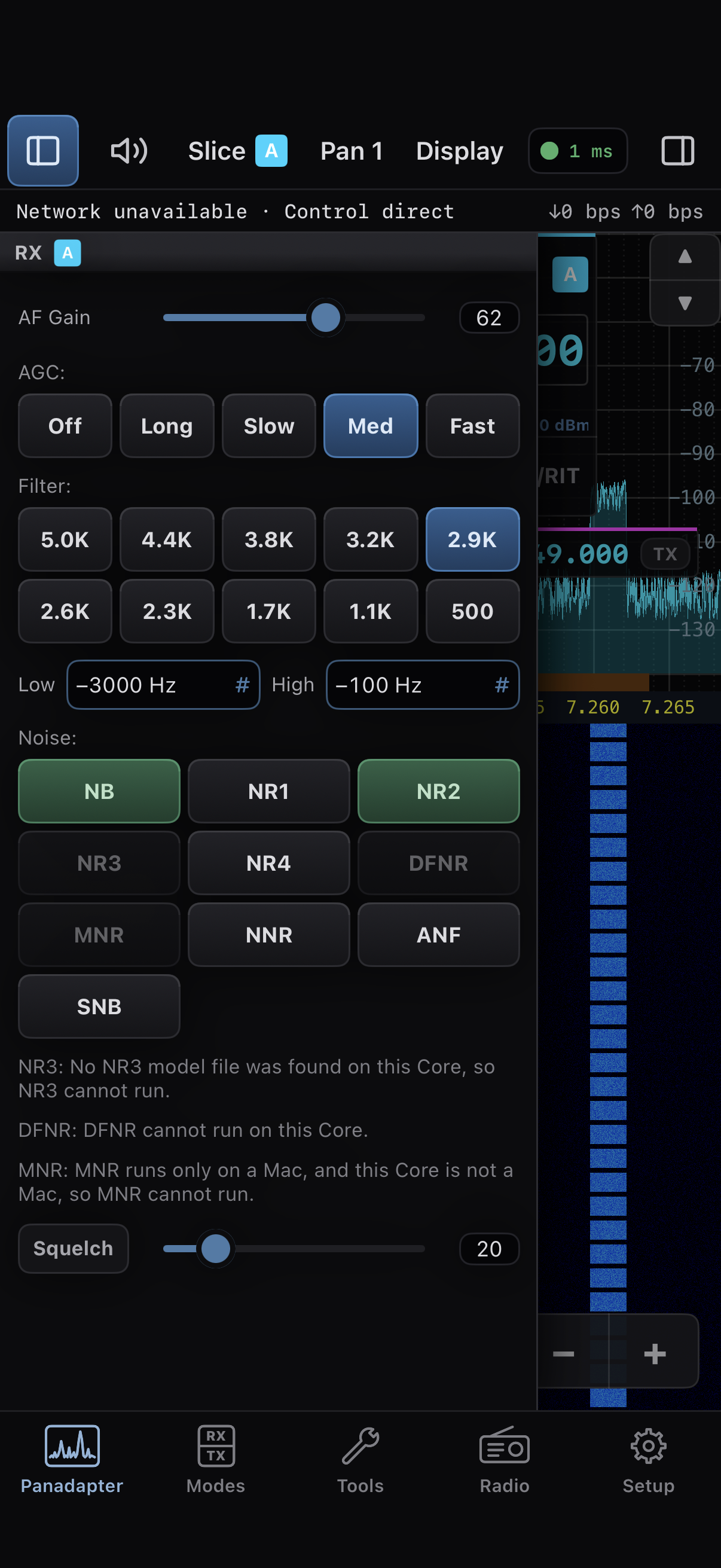
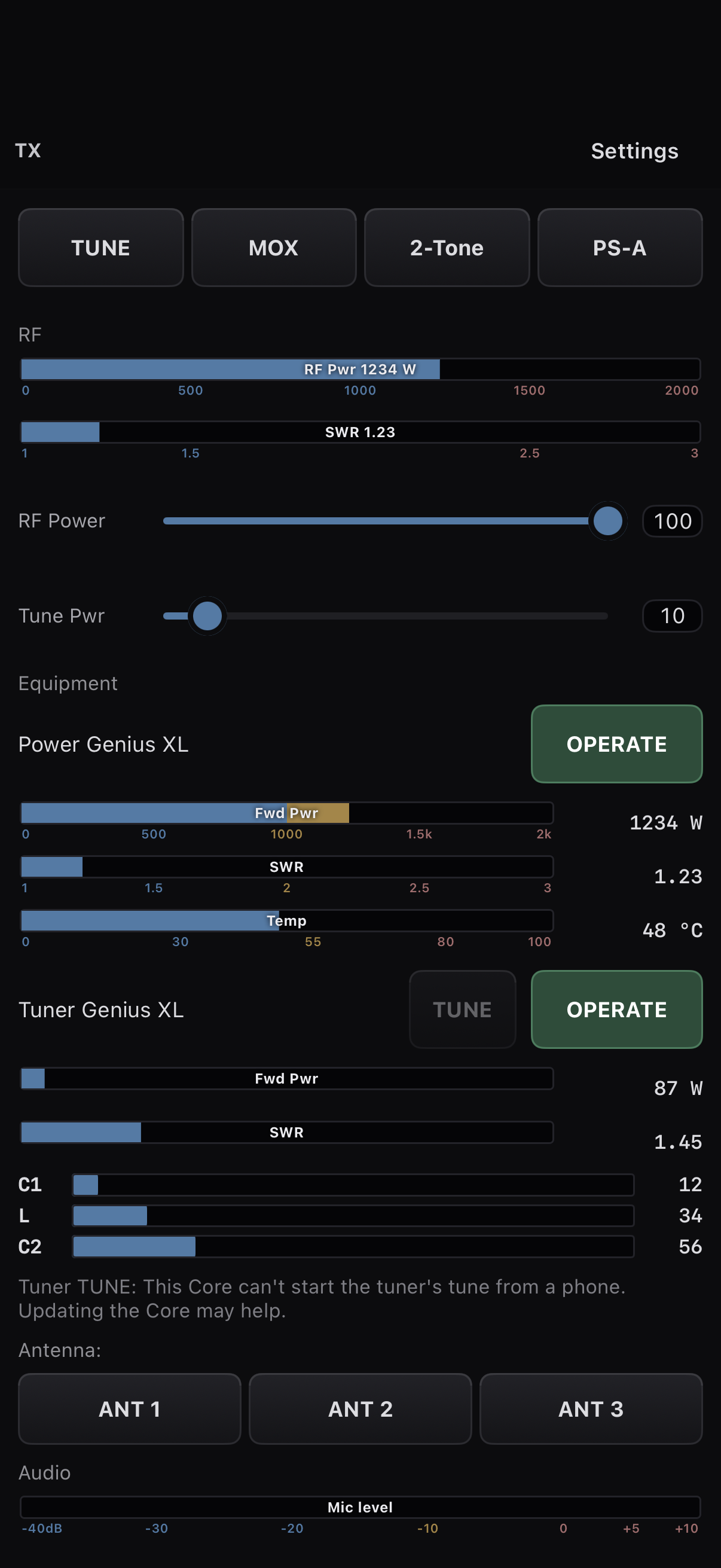
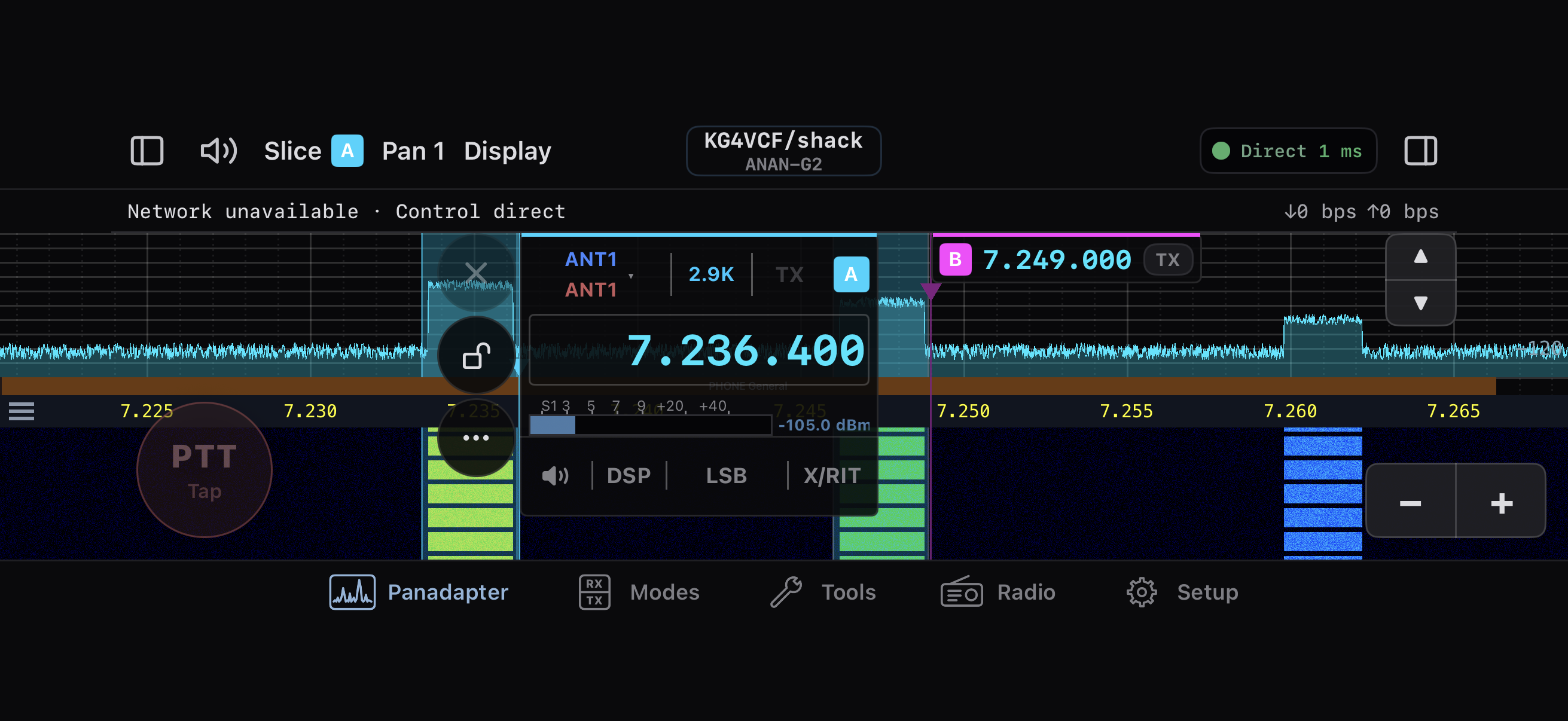
Screenshots from the native iOS simulator with simulated station data. Controls available depend on your radio and Core.
The native iPhone and iPad app is now available through TestFlight. It requires your own NereusCore station and iOS or iPadOS 17.4 or later. Join the public preview → · Install and pair your app →
NereusCore · At the station
The Core runs the radio connection, receive and transmit DSP, spectrum, station audio and accessories.
The GUI is your console: tuning, displays, meters, receive sound and microphone input.
Run both together on a desktop, or put headless nereusd beside the radio and connect from another device.
RF and I/Q over Ethernet.
Protocol 1 or Protocol 2.
Radio, DSP and station controls.
On a desktop or a Linux SBC.
macOS, Windows or Linux.
Native iPhone and iPad.
Development used a Raspberry Pi 4 and a Radxa Rock 5C with 2 GB RAM. A station Core needs no local screen or GUI. Receiver count, DSP choices and display load depend on the radio and the computer's capacity.
The fresh-board guide covers 64-bit Raspberry Pi OS Lite and compatible Armbian Debian Trixie, using the published 2026.11.0 ARM64 Core package that matches your operating system. The guide also covers the sound card and the serial adapter a rotor or serial CAT uses.
Install a station Core →Find and pair with your Core on the LAN, choose an address on a VPN, or use the rendezvous (RV) service for an introduction across networks.
The station session connects directly where possible, through TURN, or through a separate WebSocket relay when needed. RV signalling handles the introduction; the Core runs the radio and DSP on every path.
Core Settings shows the selected Core and its control, audio and display paths.
Connect to a remote Core →Desktop and mobile clients use the same station, each with its own pans and slices. Receiver access is coordinated, other devices' slices are visible as markers, and one device holds transmit at a time.
The radio's available receivers and the Core's processing capacity set what the station can run together.
Operate with several devices →Nereus races IPv6 and IPv4 and keeps the first path that answers, so a silent IPv6 route no longer holds up a connection. TURN and WebSocket relay alternatives cover the times a direct route is unavailable. That matters on CGNAT and mobile broadband, where incoming IPv4 port forwarding may not be an option. T-Mobile Home Internet, for example, does not offer configurable port forwarding. Carrier, router and firewall conditions determine which route succeeds.
Radios
Sixteen models across every OpenHPSDR family. NereusSDR finds your radio on the network, reads what the hardware can do, and keeps its settings separately for each radio.
P1 and P2 mark OpenHPSDR Protocol 1 and Protocol 2. Radios are found by broadcast discovery on your network, or by address when they sit across a VPN such as WireGuard, ZeroTier or Tailscale.
The desktop console
Run locally or connect to your Core. Independently tune each receiver, arrange pans across your screens, and build a workspace from applets, containers, Canvas and meters on macOS, Windows and Linux.
A simulated 40 m band, drawn live in your browser in the program's default look. Click or tap the waterfall to tune.
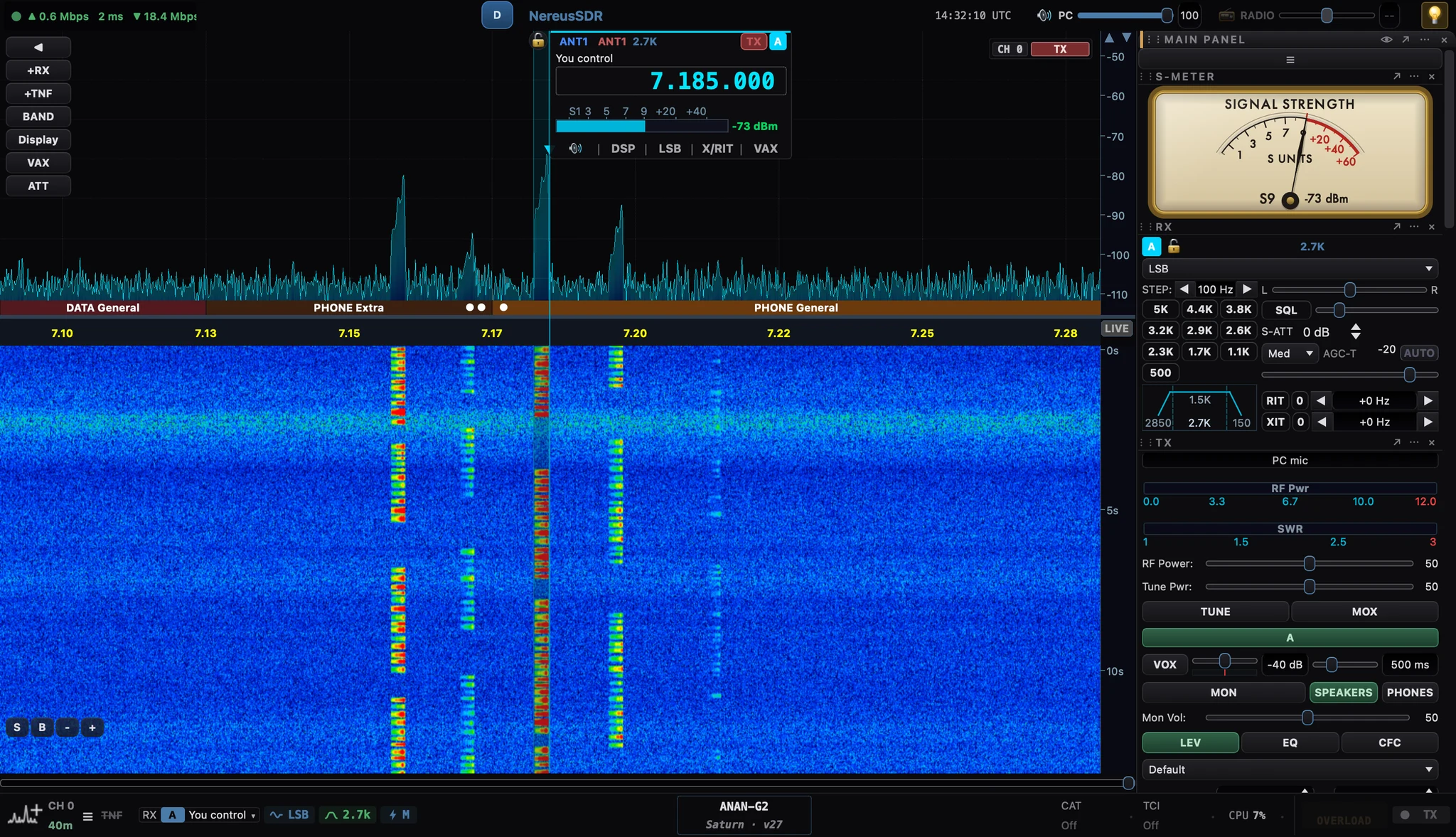
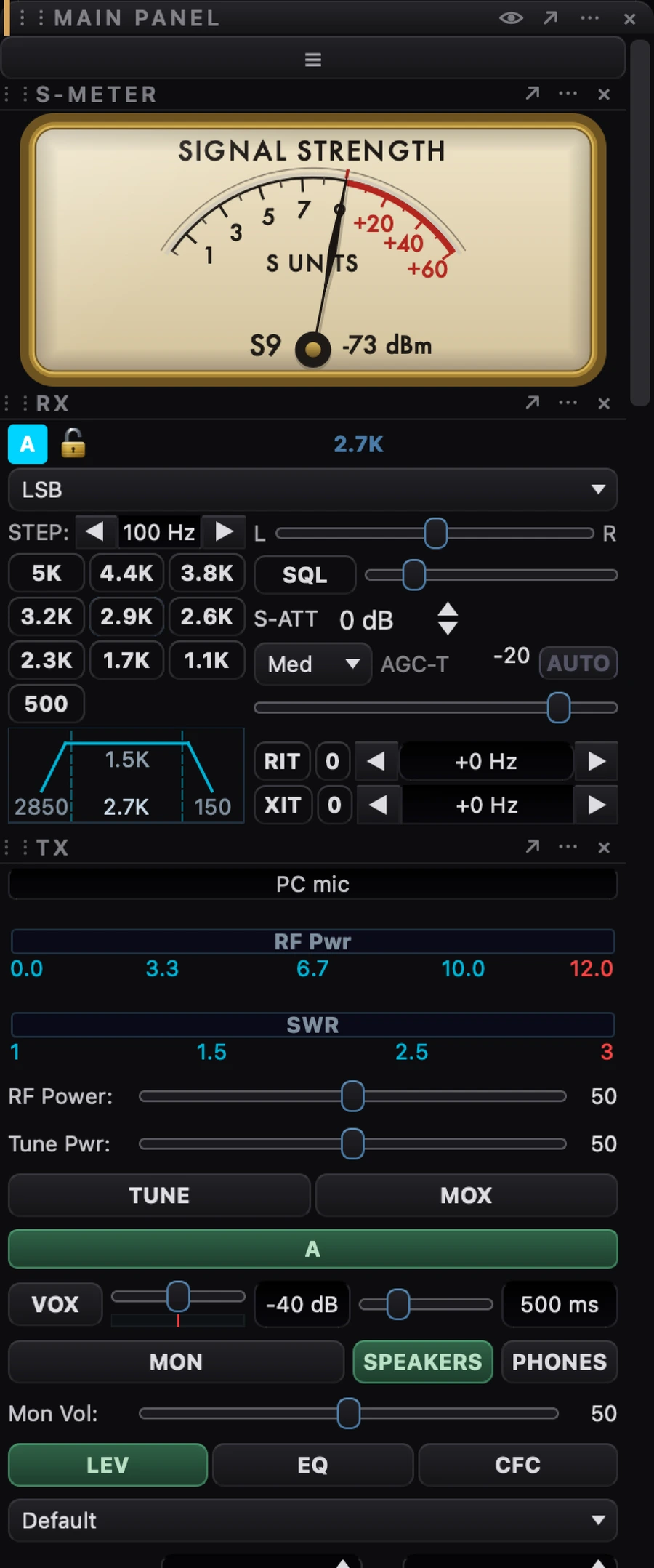
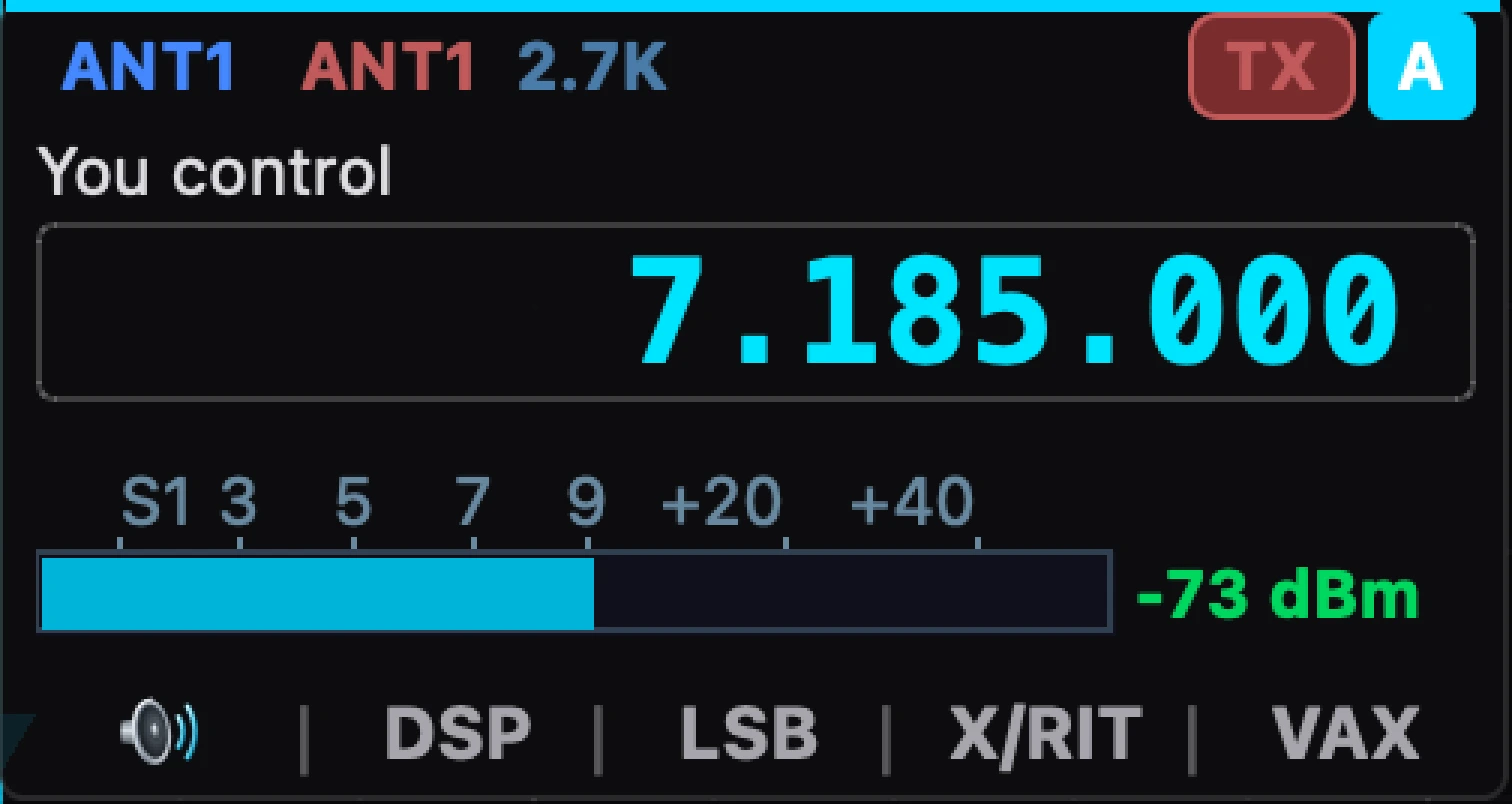
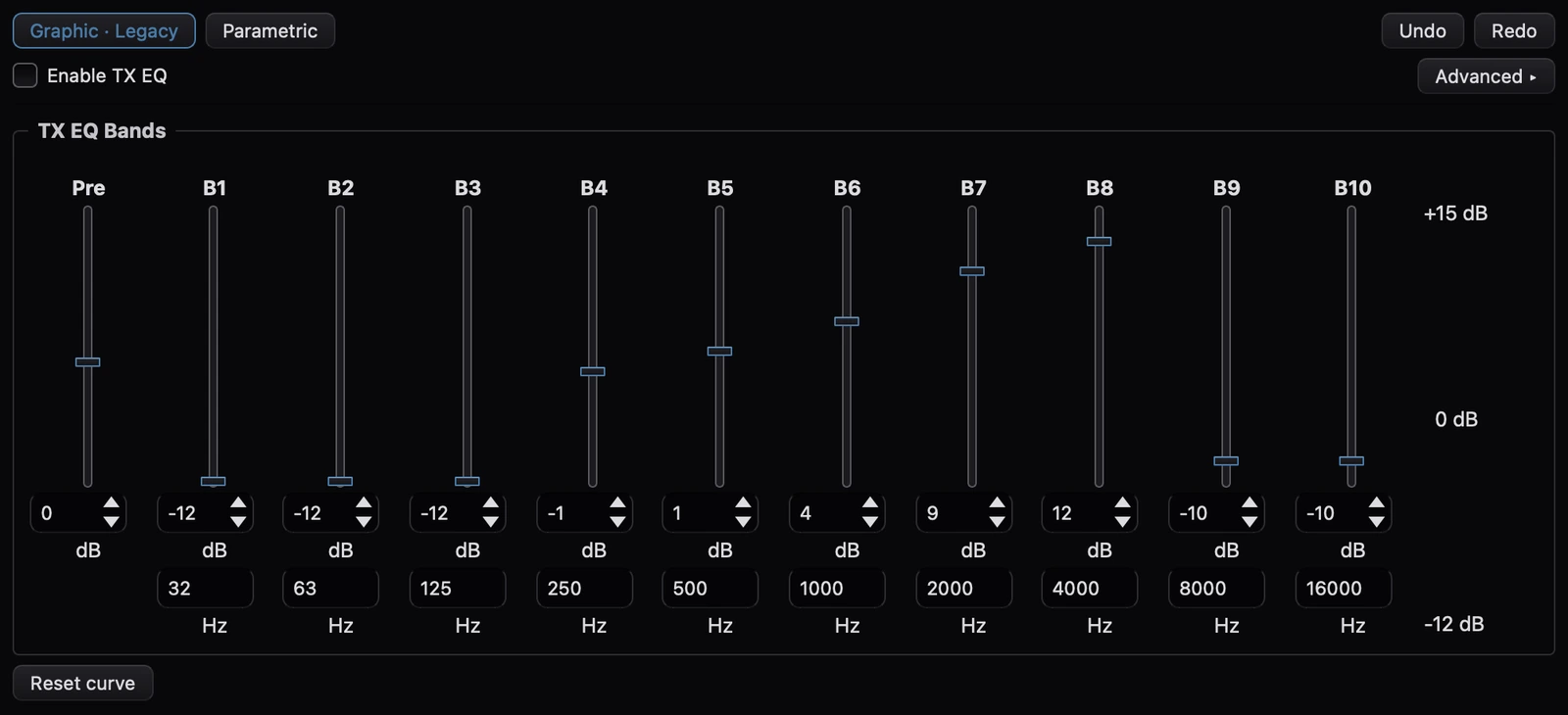
Screenshots of the desktop program on macOS with simulated station data. Controls available depend on your radio and Core.
Features
Follow a band, pull a voice out of the noise, shape your transmitted audio, or work a digital mode. The controls follow your radio and Core's capabilities, with clear reasons when a tool is unavailable.
WDSP 2.10 handles SSB, CW, AM, FM and digital modes. Choose conventional, spectral or neural noise reduction for each receiver. NNR offers Standard and Premium models, tuning controls and measured processing warnings. Your selected model keeps running until you choose Standard or turn NNR off.
SSB, AM, SAM and DSB transmit, with equalization, leveler, ALC, CFC compression, CESSB and phase rotation. Select a microphone source, choose a transmit profile and keep your audio controls beside the receiver you are working.
Give each receiver its own frequency, mode, filter and DSP settings. Arrange its panadapter around the way you operate. The 3D stacked spectrum shows signals over time, with depth, angle, gain and speed controls; Clarity keeps the waterfall anchored to the noise floor.
The workspace look is the default on the desktop, and the iPhone and iPad app now wears it too. Dock containers on any of the four edges, float them, or pop them out into their own windows, and show or hide each header. Workspace profiles save and recall whole layouts. Mix meters, applets and individual controls in a stack or on a Canvas, including any row of the RX or TX applet on its own, Nereus Band Buttons in your own colors, and a Frequency (Custom) readout sized and colored your way; vintage S-meter faces, cross-needle meters and the AM modulation monitor give your instruments their own character.
Place a tunable notch on the panadapter, then move, resize or bypass it. Notches stay at their RF frequency across retuning and apply across live receivers. Visual notch indicators leave noise-floor and meter calculations intact.
Give each receiver its own gain, mute and listening position, and route slices to speakers or headphones. Each system plays and records through its own audio engine: Core Audio on the Mac, Windows audio and ASIO, PipeWire or PulseAudio on a Linux desktop, and ALSA direct on a headless Core. Device lists update by themselves, and the header has separate PC and RADIO volumes.
Logging, contest and digital-mode programs control the radio over CAT: up to four channels, each bound to its own slices, on TCP, a serial port or a virtual serial port, with a Hamlib rigctld port beside each. Connect digital programs through TCI and VAX audio, and bring DX cluster, RBN, POTA and reporter spots onto your panadapter. Control Power Genius XL, Tuner Genius XL and RF-Kit RF2K-S from the console and from every device signed in to the station.
Turn a Yaesu GS-232A or GS-232B rotor on a serial port, or any rotor Hamlib's rotctld runs. The Core owns the rotor, so every window and the iPhone or iPad app show one heading. Use the Rotor applet's dial, drag the compass meter, or turn the beam to a spot from its bearing.
Roundtable groups people by frequency, with stacked callsigns and separately attributed reports of the last talker. Choose S-units, dBm or both for signal readings. Find it on the desktop, iPhone and iPad, and at roundtable.nereussdr.com.
A consolidated radio-status dashboard brings measurements and connection health together. Inspect live connection counters, validate settings against your radio, export configuration and read logs in one place.
Combine two synchronized antenna paths on supported two-ADC hardware. Adjust phase and gain from desktop or phone and watch the Core's live diversity pattern. Hardware limits and pauses for PureSignal are visible in the controls.
Manage predistortion on supported radio and feedback configurations, with calibration controls, feedback status and AmpView on desktop. From the native phone app, check status and control automatic calibration while the Core runs the correction.
Use graphic or parametric EQ, adjust band frequency, gain and width, and tune CFC's compression and post-EQ curves. Desktop editors offer 5, 10 and 18 bands, exact entries and undo. Native mobile EQ and CFC controls put voice shaping within reach of your phone.
RADE, FreeDV's machine-learning voice codec, runs as a native mode for receive and transmit with nothing else to install. The VFO shows SNR and, when it is sent, the other station's callsign.
Operator guides
Connect your radio, get comfortable with the console, or set up a Core beside the station. Follow the guide for the job in front of you.
The user guide takes you through tuning, receivers, displays, audio, profiles and station tools on desktop and native mobile.
Prepare a fresh Pi OS Lite or Armbian Trixie system, install the matching Core package, start the service and connect your console.
Work through EQ and CFC, keep the settings with your transmit profile, and understand the feedback and diversity tools available to your radio.
Status
2026.11.0 brings frequency-first Roundtable, a more resilient remote display, meters aligned with audio, remote CW recovery and NNR processing warnings that leave the choice with the operator. The iPhone and iPad app continues in its separate TestFlight preview.
Frequency-first Roundtable, remote display and CW recovery, audio-aligned meters, and NNR processing warnings with operator choice. Read the release notes →
CAT with Hamlib rigctld, antenna rotor control, native audio engines, separate PC and RADIO volumes, and the workspace look by default. Read the release notes →
A shared station Core, remote desktop operation, independent receivers, Canvas and containers, WDSP 2.10, and native mobile controls. Read the release notes →
4O3A Power Genius XL and Tuner Genius XL support, an analog S-meter, and the ANAN-G2E.
TCI server, spots on the panadapter, FreeDV Reporter and PSK Reporter, and RADE digital voice.
PureSignal on Protocol 1 and 2, reworked display and DSP settings, and anti-VOX.
DEXP and VOX, full PA setup, and over-drive protection for high-gain amplifiers.
SSB transmit on every supported radio, Hermes Lite 2 included, and signed macOS builds.
The noise reduction lineup, full Alex filter support, and native PipeWire audio on Linux.
First public builds for macOS, Windows and Linux.
Updating a station? Read the 2026.11.0 upgrade note first, update the Core and the desktop together, and check TUNE and the drive before you transmit. The new waterfall format needs a 2026.11.0 Core and updated desktop or iPhone and iPad clients, and meters held to audio need a 2026.11.0 Core and desktop. Phone version 2026.10.1, build 9645, is in TestFlight testing; desktop and Core packages do not update it. Older Cores, windows and apps still connect. Radio-side CW and physical paddle behavior have validation limits; see the upgrade note.
Download
Desktop releases are free, with no account and no telemetry. Download 2026.11.0 for your desktop, install a headless Core at the station, or join the native iPhone and iPad public preview through TestFlight.
macOS 14 or later on Apple Silicon. macOS 11 or later on Intel.
Signed with an Apple Developer ID and notarized, so it opens normally.
64-bit Windows on x64.
Not code-signed yet, so SmartScreen will warn you. Choose More info, then Run anyway.
AppImages for x86_64 and ARM64.
Built on Ubuntu 22.04 (x86_64) and 24.04 (ARM64). Mark the file executable, then run it.
Headless Core packages: Debian Trixie · ARM64 for Pi OS Lite and compatible Armbian, Ubuntu · ARM64, and Ubuntu · AMD64. Follow the Core installation guide for setup and signature verification. For iPhone and iPad, join the public TestFlight preview; mobile installation is separate from desktop and Core packages.
On first launch NereusSDR measures the fastest FFT plans for your processor. That can take up to about fifteen minutes, and it only happens once.
Releases are signed with this OpenPGP key. Download the .asc file that sits
next to your download on the release page, then check it:
4A95 F4D2 2AEE 9271 D8A3 C01B 20C2 8447 3F97 D2B3
# macOS
curl -fsSLO https://nereussdr.com/nereussdr-signing-key.asc
gpg --import nereussdr-signing-key.asc
gpg --verify NereusSDR-2026.11.0-macOS-apple-silicon.dmg.asc# Linux
curl -fsSLO https://nereussdr.com/nereussdr-signing-key.asc
gpg --import nereussdr-signing-key.asc
gpg --verify NereusSDR-2026.11.0-x86_64.AppImage.asc# Windows: PowerShell, with Gpg4win installed
curl.exe -fsSLO https://nereussdr.com/nereussdr-signing-key.asc
gpg --import nereussdr-signing-key.asc
gpg --verify NereusSDR-2026.11.0-Windows-x64-setup.exe.ascC++20 and Qt 6, built with CMake and Ninja. Install the dependencies for your platform from the build instructions, then:
git clone https://github.com/boydsoftprez/NereusSDR.git
cd NereusSDR
cmake -B build -G Ninja -DCMAKE_BUILD_TYPE=RelWithDebInfo
cmake --build build
./build/NereusSDR
Or take the signed source tarball from the release: NereusSDR-2026.11.0-source.tar.gz
Heritage
NereusSDR began by bringing Thetis's radio knowledge to native macOS, Windows and Linux consoles. It now adds its own station engine, remote media transport, shared-device operating model and native mobile app. Thetis, WDSP and the OpenHPSDR community remain part of its foundation, with upstream attribution preserved.
The Windows SDR console that Thetis descends from.
The standard console for ANAN and OpenHPSDR radios, carried forward by Doug Wigley W5WC, Richard Samphire MW0LGE and many other contributors.
OpenHPSDR radio knowledge, a native desktop workspace, and original Core and mobile architecture for operating one station across devices.
Warren Pratt NR0V's DSP library, the signal engine under both Thetis and NereusSDR.
A native C++20 and Qt 6 FlexRadio client, and the architectural template for NereusSDR.
The open hardware project whose Protocol 1 and Protocol 2 every supported radio speaks.
NereusSDR is free software under the GNU General Public License v3, and a derivative work of Thetis. It is not affiliated with or endorsed by Apache Labs, FlexRadio Systems, the Thetis maintainers, or the OpenHPSDR project. See the provenance record for the file-by-file attribution.
Contribute and learn
Help build the station engine, desktop console and native phone app with people around the world. Reports, testing, documentation and code are all welcome. You don't need strong coding skills to get started: bring curiosity, know what you want to improve, describe it clearly and test the result.
Learn to work in a real repository with Codex, Claude Code, OpenCode or another capable AI coding harness. Our guide takes you from a fork to a pull request, with prompts to get started and an OpenCode / Space Bunny Free option to try.


